These instructions were originally posted on Clay’s Blog. I’ve modified them a little and added screenshots.
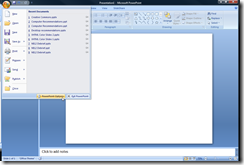
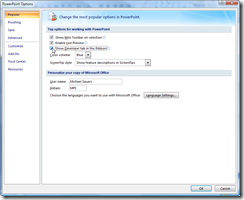
- First turn on the Developer Tab on the Ribbon by clicking on the Microsoft logo at the top left of the window and selecting PowerPoint Options all the way at the bottom of the menu. Next put a check next to the unchecked item to show the Developer Tab
- Go to YouTube and select a video to embed
- Copy the URL

- Open Notepad and paste the URL

- In the URL delete "watch?" and change the = sign to a ⁄
- Copy the new URL

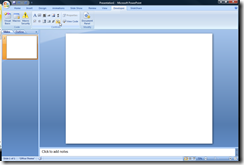
- Back in PowerPoint, on the Developer menu choose "More Controls"
- Select Shockwave Flash Object
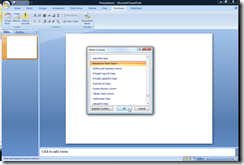
- Click and drag on the PowerPoint slide to draw a box in which the video will appear

- Right Click the box and select properties
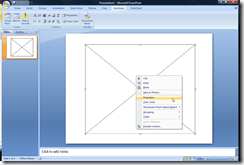
- Paste the URL into the Movie Property field
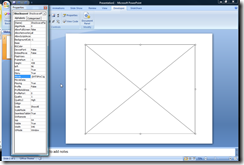
- Adjust the options for Looping or AutoPlay if desired
- Close the Properties window
- You can now adjust the size of the video by dragging the corners as needed


Your YouTube video will now play directly in your presentation provided you are connected to the Internet.


Thank you for this post, I finally learned how to embed a video!
Extremely helpful, thanks so much 🙂
Thank you for posting an easy to follow, step-by-step tutorial rather than a video. This is the best tutorial I have found in my 10 minutes of searching.
Wow! Thank you very, very much. Awesome!
you've made me the cool librarian who knows how to embed. thanks a ton!
This is how online tutorials should be written. Consise, well worded, and informative. The pictures are a perfect supplement to your step-by-step instructions. Excellent guide to PPT video embedding. Thank you.
Thanks anon for the comment. It makes me feel much better about a review of my recent books which complained that I include "too many" screenshots.
Is there a way where I can only play a small clip from a youtube video?
Short of downloading the video, cropping it in some software (which may involve first converting it to another codec,) and then re-embedding the new clip, not that I can think of.
Thank you!
This is the first time an online tutorial has actually worked for me!!
I don't have the movie category when I click on properties. Does this have to do with the fact I have Home and Student Edition?
No clue. Shouldn't be due to your version. Any chance you can post a screenshot somewhere and post a link here for me to look at?
I want to hump your leg
Brilliant! Thank you!
Michael,
This was AWESOME!! Thank you for sharing! Also, in 2007 and 2010, the field only says "Movie" not "Movie Property"
Thanks again!
John
Wonderful directions! Thank you for the help.
After following all of your instructions, the video didn’t show up…what am I doing wrong???
I have no idea. I do believe that if you’re using PPT 2010 these instructions are not longer 100% accurate.
I keep getting this MS Visual Basic message:
Private Sub ShockwaveFlash1_OnReadyStateChange(ByVal newState As Long)
End Sub
Sharon
Never mind…I figured it out…duh.
This is great!
Thank you for posting these instructions. I use PowerPoint presentations during my children’s storytimes, and now I can throw in an appropriate U-Tube video to add something extra to the show.
can you tell me why I do not see the first screen shot of the video in the side preview windows of my ppt presentation? when I start the slideshow the videos are all there, however prior to starting the presentation I do not really see them until they play.
thanks for the help
It doesn’t works any more with PPT 2007..!
thank you just tried it worked like a dream, thank you very much
the video dident show up at all and ive do it like a billon times!!!!!!!!!!!!!!
Tusher – it definately works with powerpoint 2007, i just 5 minutes back embedded the video and it played smoothly.
new youtube have links like
http://www.youtube.com/watch?feature=player_embedded&v=ER1PGUZA
so you have to change it to this
http://www.youtube.com/v/ER1PGUZA
once you do that it will work absolutely fine.
the only problem is it requires internet connections as already confirmed by Michael.
thanks a ton again Michael.
Thank you so much. I’m showing this to a room of Criminology doctoral students.
How do I open the notepad – where is it?
I hate that i cat get my video to show and i did it several times.
My PPT must play on a “message board” — How do I get the video to start automatically (without a click) – and then proceed to the next slide automatically? I am using 2007.
Thank you for these instructions! Super easy to follow and understand – the screenshots are very helpful.
tnx! this helps a lot..
hello,
actually im not being able to click on the more controls button under the developer ribbon as it is not visible, i mean that it comes grey colour.
THANK YOU!!!!!!!!!!!!! This is the first place that I’ve found that actually could help me. Not only did you provide specific instructions, I liked the visuals too. Many thanks for doing this.
I have followed every step to the letter and my video wont embed. Help Please
Thanks for this! You’re a star!
Oh em gee you made my life I heart you so much!!!!
Hi Michael! Thank you so much for posting this! It really worked 🙂 It helped a lot too 🙂 Now, I know how to embed a video on a powerpoint presentation. Thank you
still not working, have tried it several times too. I don’t see any watch on the URL from You Tube, help…..
Just went to YouTube and pulled up six random videos and they all had URLs that looked like this one: http://www.youtube.com/watch?v=UNxZXRfgGf4
Do the URL’s you’re looking at not look like this? If not, can you post an example?
Thank you! What a gift, and simple enough now that you’ve shared the magic. Always ask a librarian. 🙂
I have tried to do this several times. Everything appears to work except when I get to presentation, I get only sound. Looks like a YouTube player and you can see the “stills” along the progress bar if you roll over it. BUT NO LIVE VIDEO in screen. What am I doing wrong. Note – video files play fine.
Best advice on embedding a video available.
Worked for me. Thanks for the instructions!
sharing is very helpful once you give, thanks
I got as far as the “More Tools” button in the Developer tab. When I scrolled down, “Shockwave Flash Object” was NOT a listed option. How could I fix this problem? Thanks in advance for all your help!
Unfortunately, I no longer have any access to a computer running Office 2007. The one suggestion I can make is to confirm you’re using Office 2007 as these instructions will not work in newer or older versions.
For those using Office 2010:
There is now an “insert video from website” option however, this seems to fail with YouTube embed code (new or old).
To use the old method as given above you will first need to add the controls to PowerPoint.
1) Right click on the ribbon
2) Select “Customize Quick Access Toolbar”
3) Change “popular Commands” to “All Commands”
4) Scroll down and find “Controls”
5) Click “Add” and then “ok”
6) From the quick access panel at the very top left of PowerPoint, click the new “controls” icon
7) Click the Hammer and tools (more controls) icon
8) Scroll down and select “Shockwave Flash Object”
…continue as with blog post above.
You will only need to add the controls icon once. Once added, just go from step 6.
Thanks!
Another way is to convert YouTube to PowerPoint supported format.
iDealshare VideoGo, the professional YouTube to PowerPoint Converter, can easily convert all kinds of downloaded YouTube videos whatever it is in FLV, MP4 or WebM format to PowerPoint supported video format like AVI, WMV, ASF, MPG and etc. It also support convert YouTube to PowerPoint supported audio format like AIFF, MP3, WMA, WAV, AU.
Most of the YouTube videos are FLV files and FLV can’t be accepted by PowerPoint. It can be known from Microsoft official site that PPT supports video formats ASF, AVI, MPG, MPEG, WMV and audio files AIFF, MP3, WAV, WMA. To put YouTube Videos in PowerPoint, we need to download YouTube videos to embed and insert YouTube videos to PowerPoint to play YouTube videos in PowerPoint.
I recommend you a FLV Converter named Bigasoft Total Video Converter which can successfully download YouTube video to PowerPoint and then import/add/embed/insert/put YouTube videos in PowerPoint to play YouTube videos in PowerPoint.
Hope it can help you!
Keep in mind that these instructions were for PowerPoint 2007 and they worked at the time on flash videos. More recent versions of PowerPoint may nor support flash as well or at all. However, I will generally second your advice of downloading and using a local copy of the video. This was, flash or not, you aren’t relying on your internet connection in order to be able to play the videos. In fact, I’m working on a presentation today that includes several YouTube videos. For those I’m using KeepVid.com to download an MP4 version of the videos and them embedding the local copies.
Hi everyone
all of a sudden (yesterday) Powerpoint 2007 no longer allows youtube to be played during a presentation. does anyone know why please?
Yours
extremely frustrated
Ditto with Jeanette above … my company is still at Office 2007 (yeah!) … followed the directions for PPT 2007 Youtube Videos, but just get a black window.
Worked like a charm! Thanks for sharing! I really need this.
I use Allavsoft to directly download YouTube videos to PowerPoint supported AVI, WMV, MPGE-1, ASF, MP4.
Then import them to PPT.